 admin
admin How To Convert Multiple Photos At Once Online
I remember the pain. You’ve got a hundred screenshots, all stuck in PNG. You want to shrink them to JPG, or maybe make them WebP for faster loading. Doing one by one? That’s a nightmare. I found a tool that solves this. It runs entirely in your browser. No upload, no server, no sign-up. You just drag your files in, pick a format, and hit convert. Everything happens locally. Your photos never leave your computer. Honestly, it feels like magic. I’ve been using it for months now, and it’s saved me hours. Let me walk you through exactly how I do it.
Supported Formats: JPG, PNG, WebP
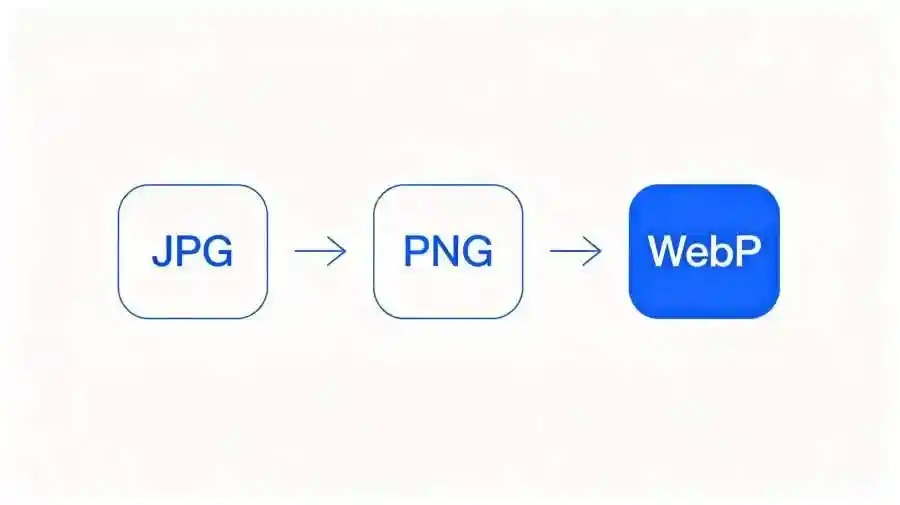
What can you convert? Basically, the three big ones. JPG, PNG, and WebP. You can go from JPG to PNG, or PNG to WebP, or any combination. It also supports other common ones like GIF, BMP, and TIFF. But let’s be real – most people stick with JPG, PNG, and WebP. A lot of people don’t realize WebP gives better compression than JPG, with similar quality. I usually convert my blog images to WebP now. By the way, the tool keeps the original resolution. It doesn’t upscale or downsize unless you choose a specific option. Simple enough. You just choose the output format from a dropdown. That’s it.
Single-Image Conversion Steps
When I first opened the tool, I tested it with one photo. Just to see how it worked. I clicked “Select Images” and picked a single JPG file. Or you can drag and drop it right onto the page. Then I chose “PNG” as the output. There’s a little toggle for quality – I left it at default. Then I clicked “Convert.” It took maybe two seconds. A download link appeared. I clicked it, and the converted PNG saved to my Downloads folder. Super smooth. Honestly, you don’t need a tutorial for one image. But I wanted to make sure the interface was clean before I tried batch. Spoiler: it was.
Batch Conversion Steps
Here’s the real game‑changer. I had a folder of 60 vacation photos, all in JPEG. I wanted them as WebP. I opened the tool again. I selected multiple files by holding Ctrl (or Cmd on Mac) and clicking each one. Or you can drag a whole folder – it scans for images. I dragged the whole folder in. All 60 files appeared in a list. Then I chose “WebP” from the output dropdown. There’s an option to keep original names or add a suffix. I kept them as is. Then I hit “Convert All.” The progress bar jumped fast. After maybe 15 seconds, a “Download All” button appeared. Clicking it gave me a zip file with all 60 WebP images. No fuss. I also like that I can preview the result size before downloading. That’s a nice touch.
Advantages: Pure Frontend, No Server, No Watermark, No Registration
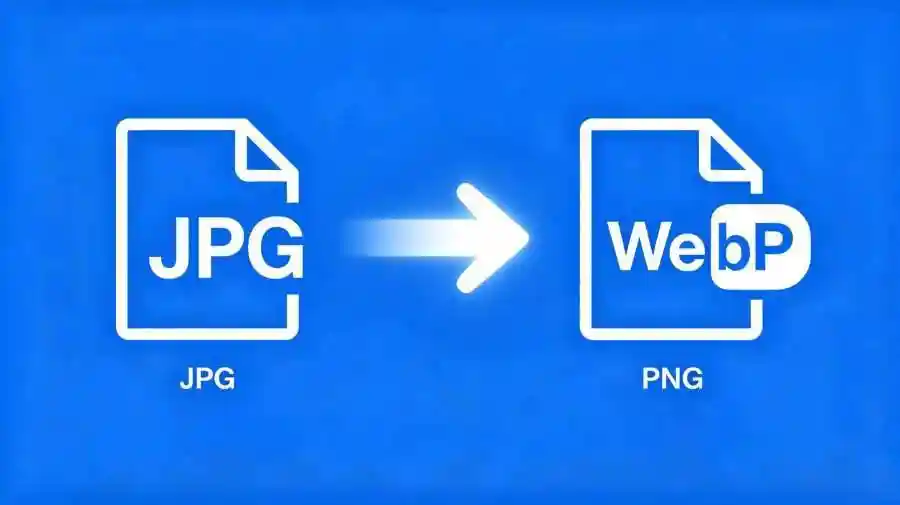
Why do I love this tool? First, it’s pure frontend. All processing happens in your browser using JavaScript. Your photos never leave your device. That means zero privacy risk. Second, no server load. You’re not uploading files to some remote server, so it’s instant. Even with 100 large photos, it works offline after the first load. Third, no watermark. I hate tools that imprint a logo on my images. This one doesn’t add anything. Fourth, no registration. You don’t need an account, no email, no login. Just open the page and go. I’ve seen other services that require signing up or limit batch size. This one handles hundreds of files without any paywall. Honestly, it’s the most straightforward tool I’ve found. I recommend it to everyone who struggles with image conversion.
Conclusion
So there you have it. Converting multiple photos at once online is easy when you use the right tool. No need to install software or waste time. Just drag, choose, and download. I’ve saved hours over the past few weeks. Give it a try – you’ll thank yourself later.
发表评论