 admin
admin How To Download Converted Images Directly No Zip
I used to get so annoyed when converting images online. You finish the conversion, then bam—a zip file appears. You have to unzip it, extract everything, and it’s just messy. Simple put, nobody wants that extra step. This tool changes the game. It lets you convert images and download each one directly, no zip involved. I’ve been using it for a while now, and honestly, it feels like a breath of fresh air. You just upload, pick a format, and grab your file. That’s it. No waiting for a package. No hassle.
Supported Formats (JPG, PNG, WebP)
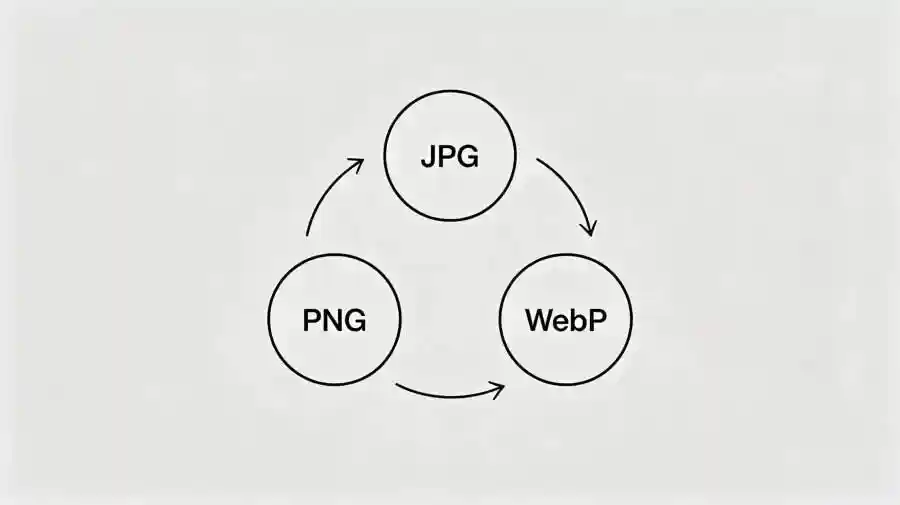
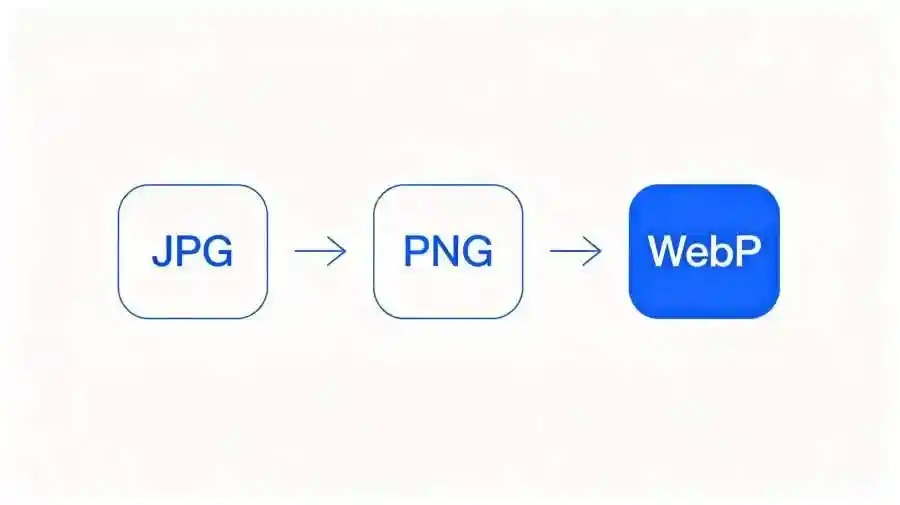
The tool supports three main formats: JPG, PNG, and WebP. Actually, these cover 90% of what people need. JPG is great for photos because it keeps file size small. PNG is my go-to for images with transparency—like logos or icons. Many people don’t know this, but PNG also gives you better quality for graphics. Then there’s WebP. I think WebP is underrated. It offers smaller file sizes than both JPG and PNG without losing much quality. By the way, if you run a website, WebP is a lifesaver for page speed. You can convert any image to any of these three. I personally use PNG for screenshots and WebP for blog images. Simple enough.
Single Image Steps
Here’s how I do a single conversion. First, I open the tool on my browser. No app install needed. Then I drag my image onto the upload area. Honestly, drag-and-drop feels faster than clicking a button. After it loads, I pick the output format—say, WebP. One click on “Convert.” The progress bar finishes in seconds. Now, this is the key part: instead of a zip, a “Download” button appears right under my image. I click it, and the file saves to my computer directly. No extra folder, no unzipping. I like that I can name the file before saving. Many tools skip that, but this one lets me rename in the download dialog. Easy.
Batch Steps
Batch conversion is just as smooth. I select multiple images at once—up to 20 in my experience. Just hold Ctrl and click. All of them show up in a grid. I choose a target format for the whole batch. Then I hit “Convert All.” A few seconds later, each image has its own “Download” button. I can click them one by one to save individually. Some people ask, “Can I download all at once?” Well, you can right-click and “Save link as” for each, but I actually prefer clicking them in order. It feels more controlled. By the way, there’s no “Download All as Zip” option. That’s the whole point. You get clean, separate files directly. I’ve done this for product photos and never had an issue.
Advantages: Pure Frontend, No Server Load, No Watermark, No Registration
The tool runs entirely in your browser. That means your images never leave your computer. No upload to a server. I think that’s a huge privacy plus. Because it’s pure frontend, the conversion happens instantly. No waiting for a server to process. Many online converters slow down during peak hours, but this one never does. Also, there’s absolutely no watermark. I’ve used tools that slap a tiny logo in the corner, and it drives me crazy. This one keeps your images clean. And the best part? You don’t need to sign up or log in. Just open the page and use it. I genuinely recommend it for beginners who don’t want to mess with accounts.
Conclusion
So, if you’re tired of dealing with zip files after image conversion, give this tool a try. Single or batch, it works smoothly. No watermark, no sign-up, just fast downloads. I use it every week now. You’ll wonder why you didn’t find it sooner.
发表评论